The INZONE M10S allows you to connect multiple devices simultaneously. This feature enables smooth switching between devices, creating a comfortable and efficient environment for your needs.
The INZONE M10S is equipped with two HDMI ports and one DisplayPort port. To take full advantage of the high refresh rate, connect your devices with the appropriate cables. For maximum monitor performance, use an HDMI 2.1 or DisplayPort 2.1 compatible cable to connect to your computer.
Use an HDMI 2.1 cable to connect to a compatible gaming console, such as the PlayStation®5.
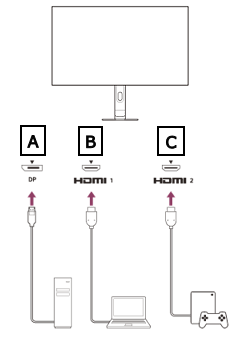
- A: DisplayPort port
- B: HDMI port
- C: HDMI port
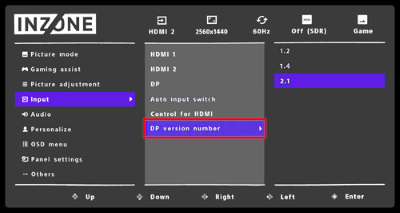
When connecting your computer using the DisplayPort ensure the correct DP version number matches your graphics card and DisplayPort cable. You can set the DisplayPort version in the INZONE Hub app by following these steps:
- Press the joystick on the rear of the monitor to display the menu items.
- Select Input → DP version number.
- Select one of the following:
- The graphics card of the connected computer
- Version number 1.2, 1.4, or 2.1 that corresponds to the DisplayPort cable.
By enabling HDMI control, the monitor's power and connected device will turn on or off at the same time. You can enable HDMI control in the INZONE Hub app by following these steps:
- Press the joystick on the rear of the monitor to display the menu items.
- Select Input → Control for HDMI → ON.
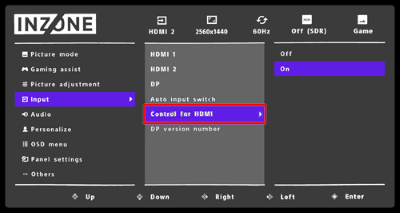
This will enhance the connection with PS5™ and other HDMI-CEC-compatible devices.
If you connect a computer to the INZONE M10S, you can use USB devices (keyboard, mouse, etc.) by connecting them to the monitor instead of the computer. If you want to use this function, connect the devices as follows:
- Connect a USB device to the monitor.
- Connect the computer and monitor using one of the following cable combinations:
- USB Type-B cable and DisplayPort cable
- USB Type-B cable and HDMI cable
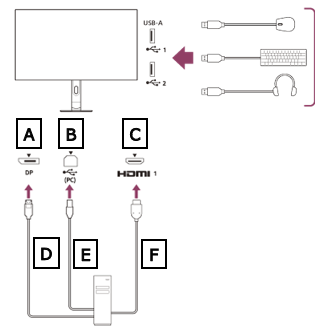
- A: DisplayPort port
- B: USB Type-B port
- C: HDMI port
- D: DisplayPort cable
- E: USB Type-B cable
- F: HDMI cable