Connection issues can be frustrating, but don't worry – most problems have simple solutions. Whether you're trying to connect via USB transceiver or Bluetooth®, this guide will walk you through step-by-step troubleshooting to get your headphones working smoothly again.
We recommend starting with the basic steps and working your way through the options until your headphones are connected successfully.
IMPORTANT: The USB transceiver (dongle) is compatible with both PC and PS5. Other devices, like TVs, are not guaranteed to work.

Select your issue
If your headphones aren't connecting to your device using the USB transceiver, let's walk through some simple solutions together.
Step 1: Basic checks
- Make sure both your headphones and device are powered on.
- Check that the USB transceiver's slide switch is set correctly → select PC for computer connections or OTHER for gaming consoles and smartphones.
- Ensure the transceiver is firmly inserted into the USB port.
- If you're using a computer, disconnect the transceiver and connect it to a different USB port.
Step 2: Pair your devices again
- Press and hold the connect button on the USB transceiver and the
 (power) button on the headphones for about five seconds or more.
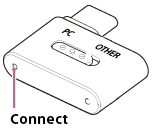
- Listen for a notification sound – this means your headphones have entered pairing mode.
- Watch for the connection indicator on the transceiver and power indicator on the headphones to flash twice alternately.
- You will hear a voice guidance say "Pairing".
- Once pairing is complete, you'll hear another notification sound and see the connection indicator light up in white.
Step 3: Restart and Reconnect
- For all devices:
- Restart your computer, PS5™, or USB Type-C® compatible smartphone.
- Once the device is restarted, reconnect the USB transceiver.
- For USB Type-C smartphones
Your smartphone may require additional settings to work with the USB transceiver. Look for options like Detect USB device or Enable USB On-The-Go connection in your phone's settings. The exact name may vary depending on your smartphone model – check your phone's manual for specific instructions.
- Still not working? Try these steps:
- Turn off the connected device (computer, PS5, or USB Type-C compatible smartphone).
- Disconnect and reconnect the USB transceiver.
- Turn your device back on.
Step 4: Restart or reset to factory settings
When basic troubleshooting doesn't resolve the issue, a restart or complete reset can often restore your headphones to proper working condition. Check if the issue still occurs before moving on to the next step.
- Restart your headphones: This returns settings to their defaults while keeping your pairing information.
- Reset your headphones to factory default settings: This is a complete factory reset that erases all settings and Bluetooth pairing information. You'll need to pair your devices again afterward.
Tip: If your headphones seem to be at maximum volume, check the volume setting on your connected device. The source device's output level limits the headphones' volume, so make sure to turn up the volume on your phone, computer, or other connected device for the best experience.
Having trouble with your Bluetooth connection? Let's get that sorted out!
Step 1: Quick fixes to try first
- Make sure the headphones and Bluetooth device are turned ON.
- Check your audio profile – if it's set to HFP (Hands-free Profile) or HSP (Headset Profile), switch to A2DP for music playback through your device settings.
- Adjust the volume on your connected device – if it's too low, your headphones might not produce the expected sound level.
- Confirm your device is actually playing music.
Step 2: Reset your connection
- Disconnect and reconnect your headphones and the devices.
- Restart the device being connected.
Step 3: Restart or reset to factory settings
When basic troubleshooting doesn't resolve the issue, a restart or complete reset can often restore your headphones to proper working condition. Check if the issue still occurs before moving on to the next step.
- Restart your headphones – This clears temporary settings while keeping your pairing information.
- Reset the headset to factory default settings – This complete factory reset removes all settings and Bluetooth pairings. You'll need to set up your connections again from the beginning.
Tip: If your headphones seem to be at maximum volume, check the volume setting on your connected device. The source device's output level limits the headphones' volume, so make sure to turn up the volume on your phone, computer, or other connected device for the best experience.